
Introduction
Pixio API is the easiest way for teams to use ComfyUI and power apps.
ComfyUI Workspace
Experience the new Dynamic Island interface for seamless workflow development, session management, and testing.
API Deployments
Deploy workflows as APIs, manage autoscaling, and more.
Billing & GPU Pricing
Credits, per-second GPU rates, plans and limits — and exactly when you're charged.
Overview
We do this by letting your team share the same custom nodes environments, models and workflows with your teams.
Getting Started Steps
-
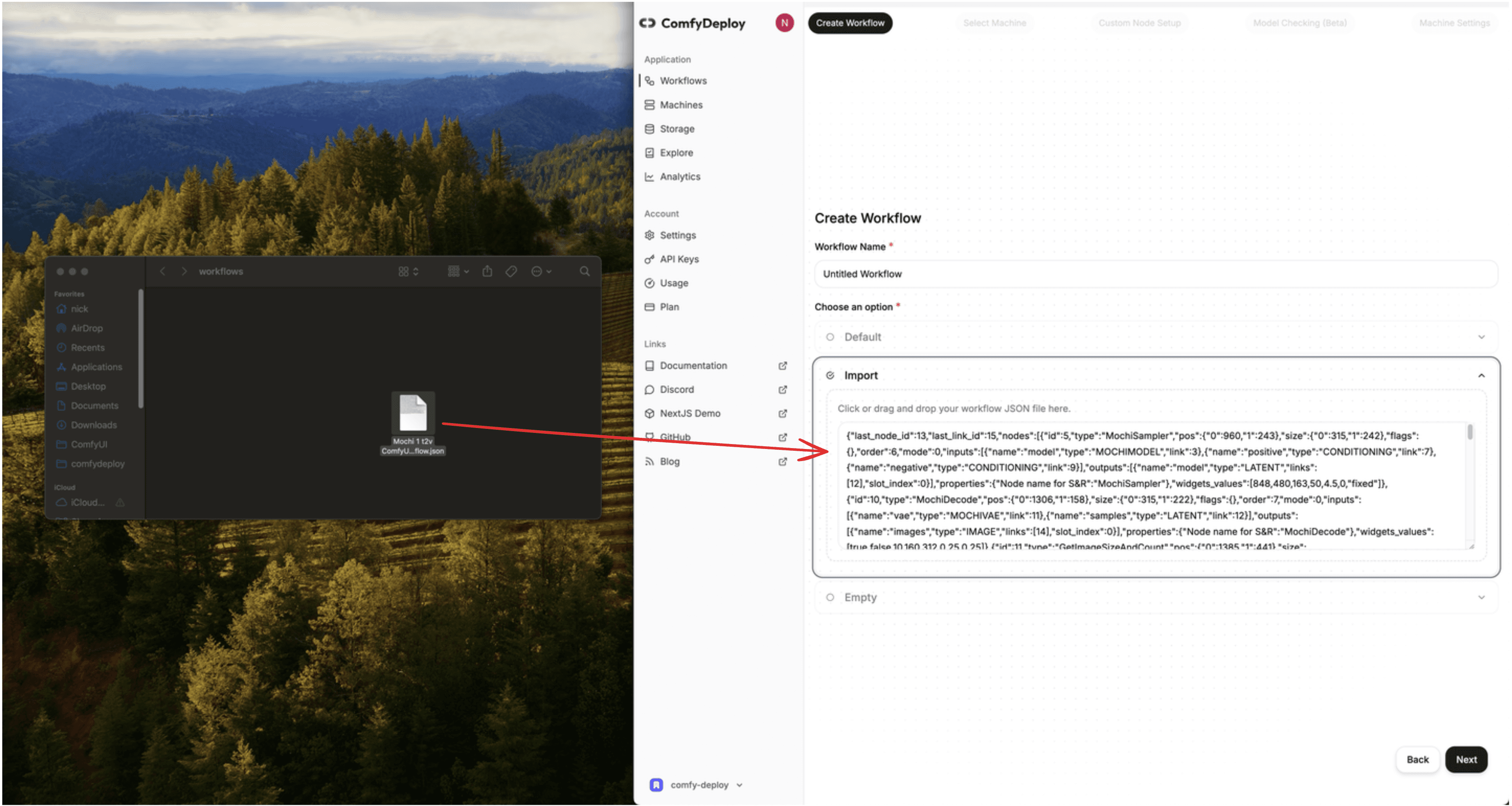
Import your workflow Either via the dashboard (recommended) or from your local ComfyUI.
-
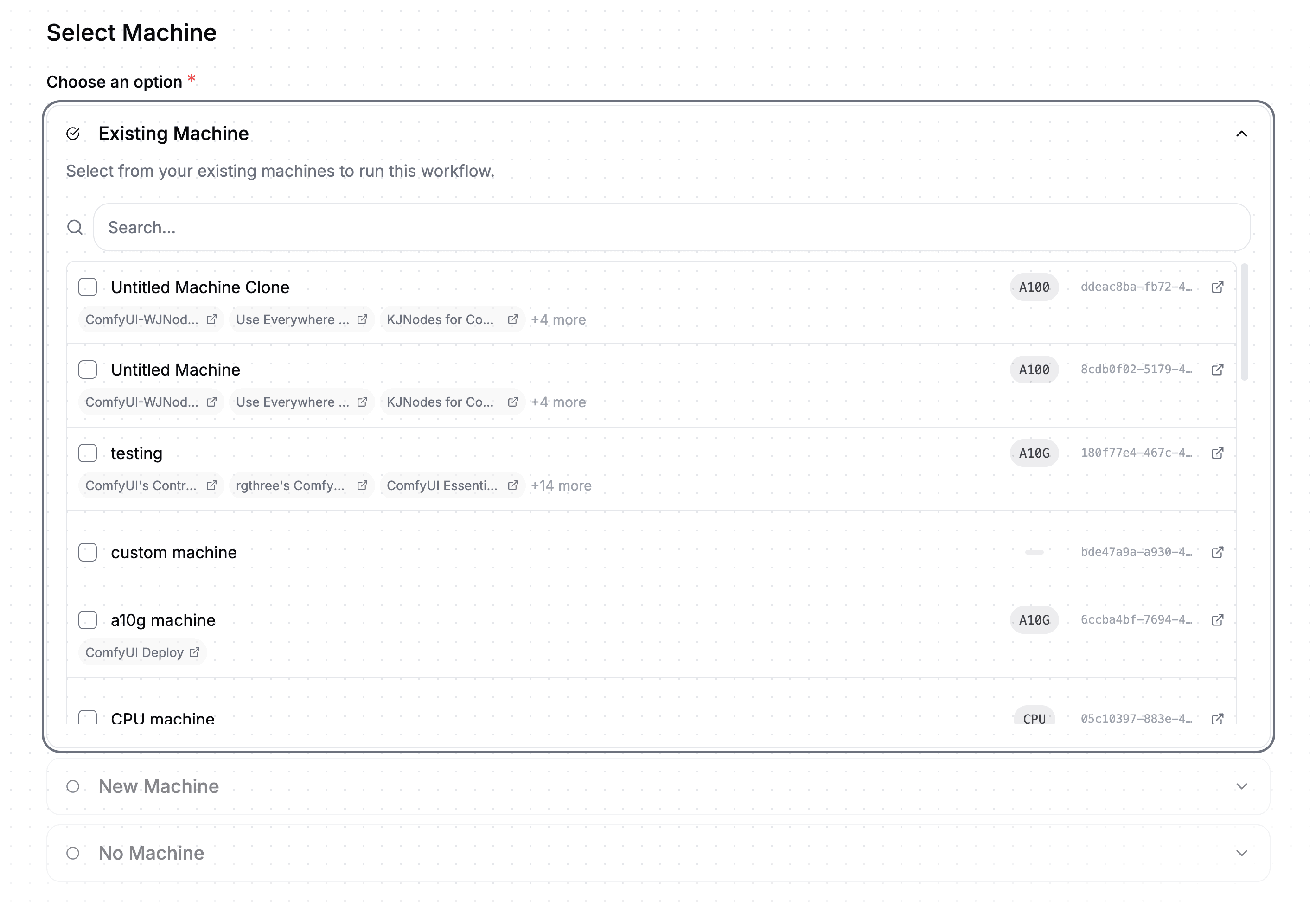
Build a machine Define a machine configuration to run your workflows on.
-
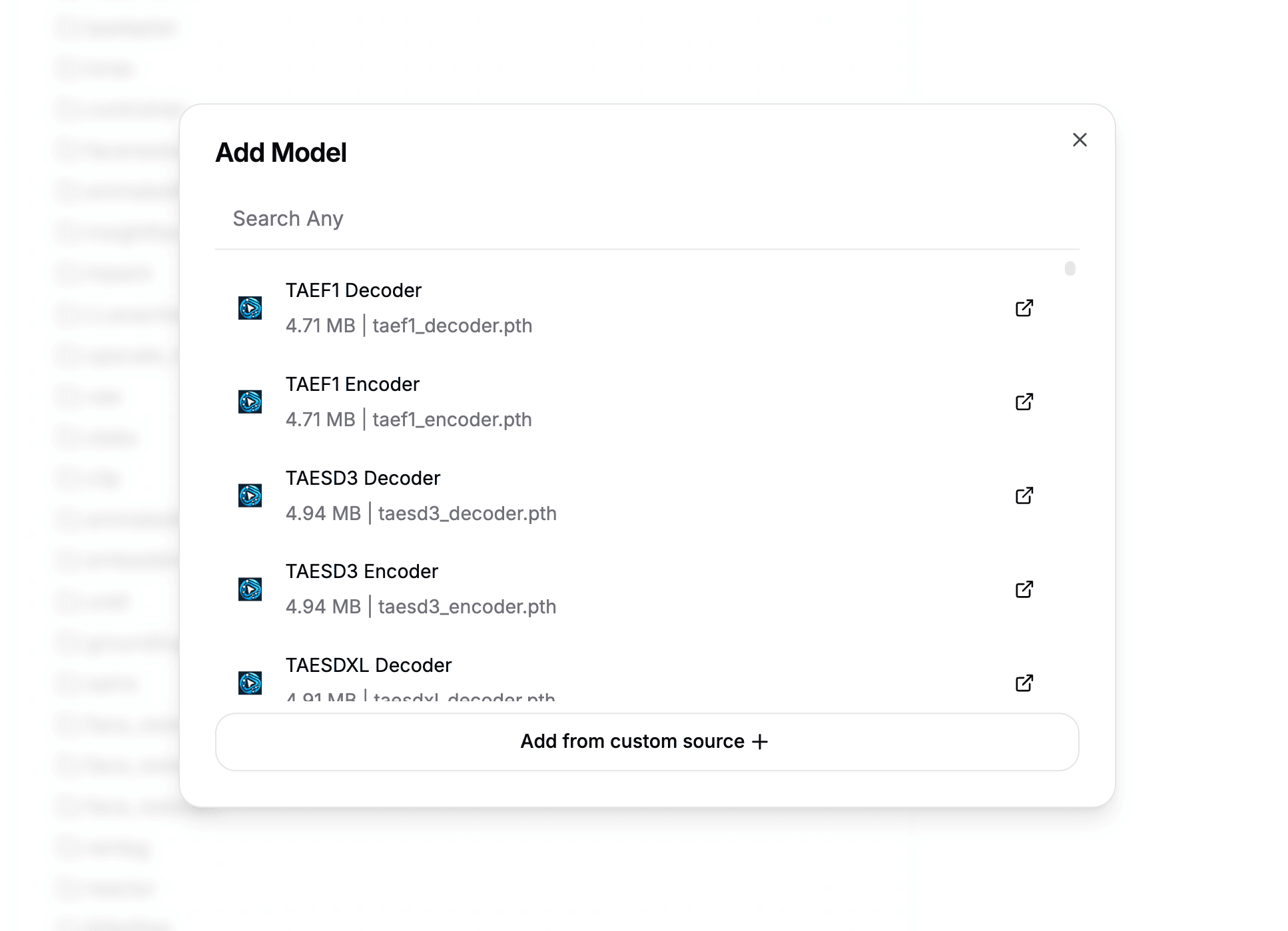
Download models Download models into your private storage, to be used in your workflows and team.
-
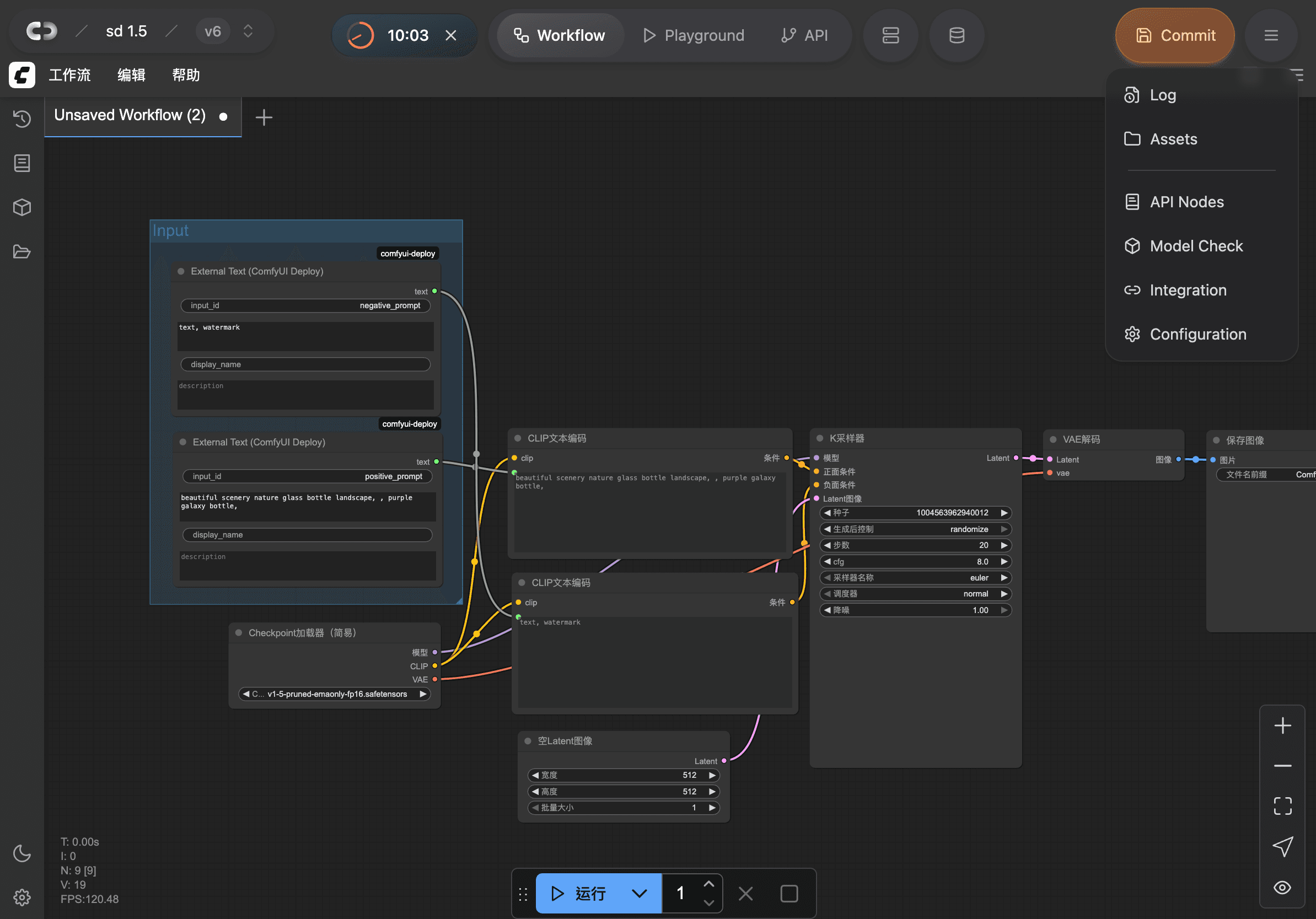
ComfyUI in the cloud Use ComfyUI in your workspace, to modify and test your workflows on cloud GPUs with the new Dynamic Island interface.
-
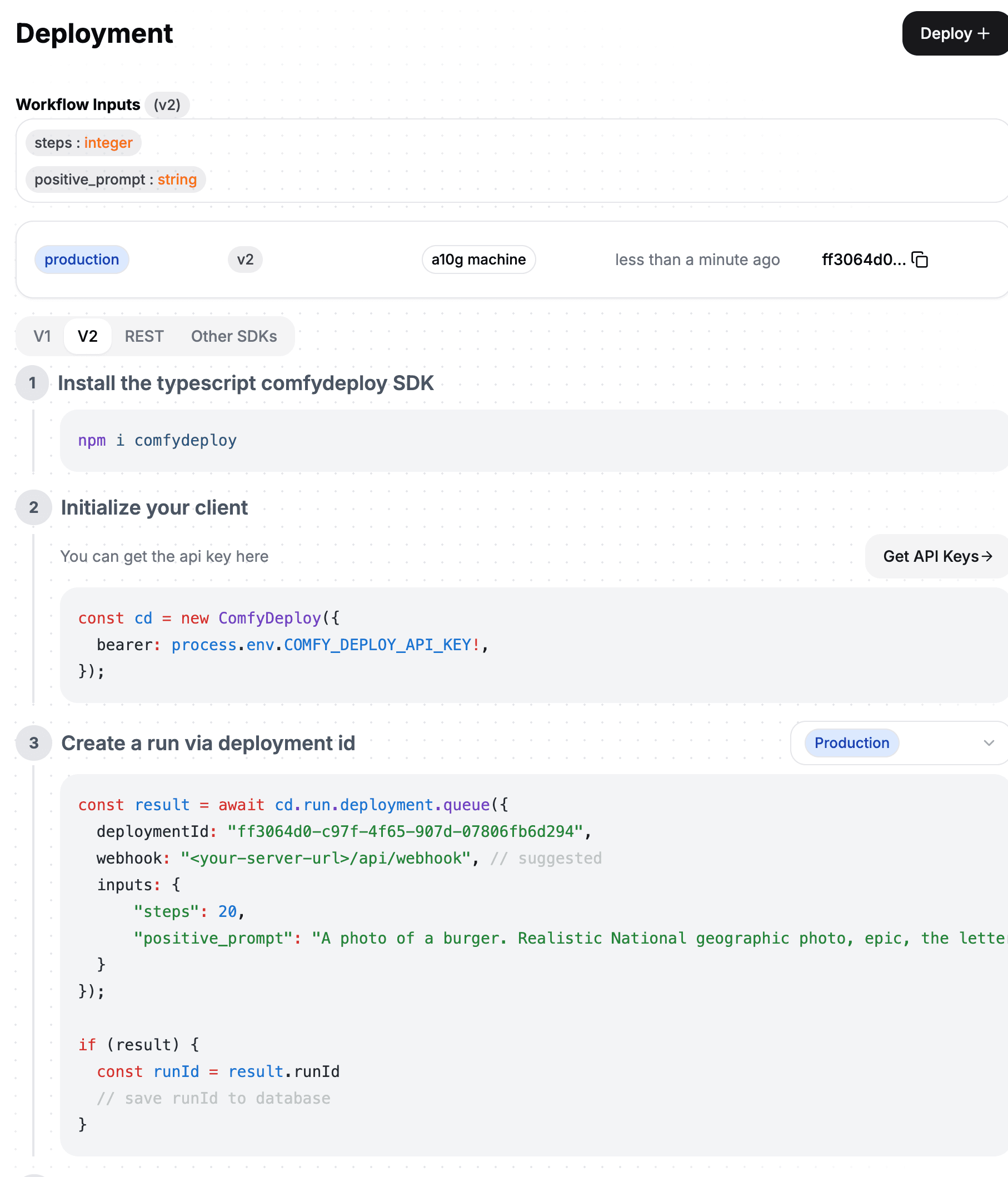
Expose inputs Expose workflow inputs with our custom nodes, for API and playground use.
-
Deploy APIs Power apps with your API deployments.
-
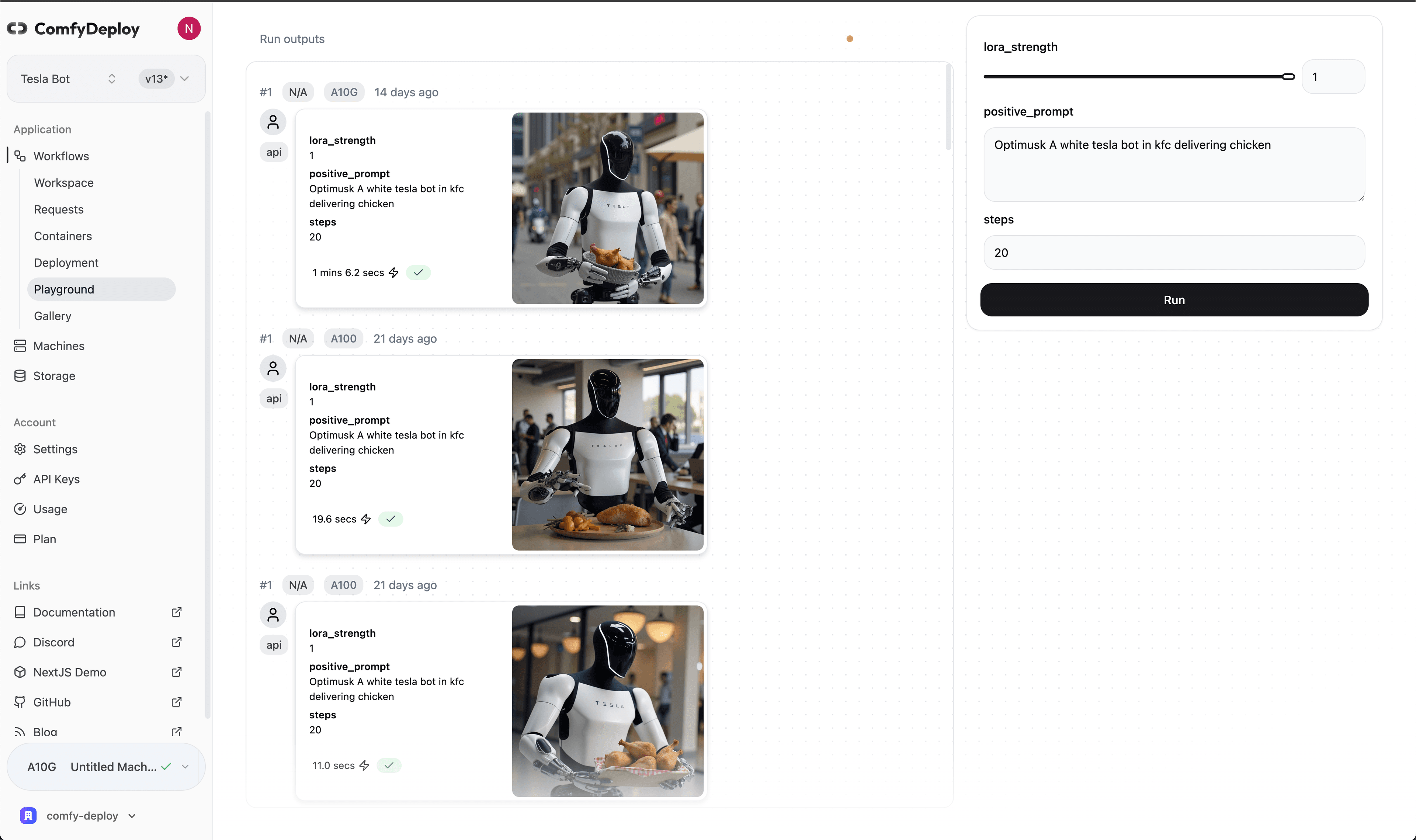
Share with team Let your team use your workflows in playground without using ComfyUI.
What can you run here?
Pixio API tracks ComfyUI closely, so new open models are usually runnable within days of release — pick a machine with enough GPU (see GPUs & Pricing) and go. Recent highlights from the ComfyUI ecosystem:
- MiniMax H3 — open-weights video with native stereo audio and up to 2K output. Runs great on our H200/B200 machines.
- Seedream 5.0 Pro — ByteDance's latest image model with strong editing and character consistency.
- Seedance 2.0 Mini & 4K — lightweight and 4K video variants.
- HappyHorse 1.1 — audio-native video generation with dialogue and multi-character consistency.
- Krea 2 open-source models — RAW and Turbo checkpoints, a great fit for A10G/L40S machines.
- Comfy MCP — drive ComfyUI from AI agents like Claude.
Follow the ComfyUI blog for new model drops — if ComfyUI supports it, you can usually deploy it here the same week.